
Chat Channels
Chat Channels connect a messaging app — Telegram, Lark (Feishu), or WeChat — to Codeg, so you can run it from your phone. Fire off a task from a chat message, talk to the agent as it works, tap approve when it needs permission to run a command, and get its results pushed back to you — all without sitting in front of Codeg. It's one of the two ways to drive Codeg while you're away from it; Automations is the other.
You connect a bot once in Settings, and from then on everything is a message: a connected chat can start sessions, follow them live, and unblock an agent that's waiting on you. Nothing is on until you add a channel.
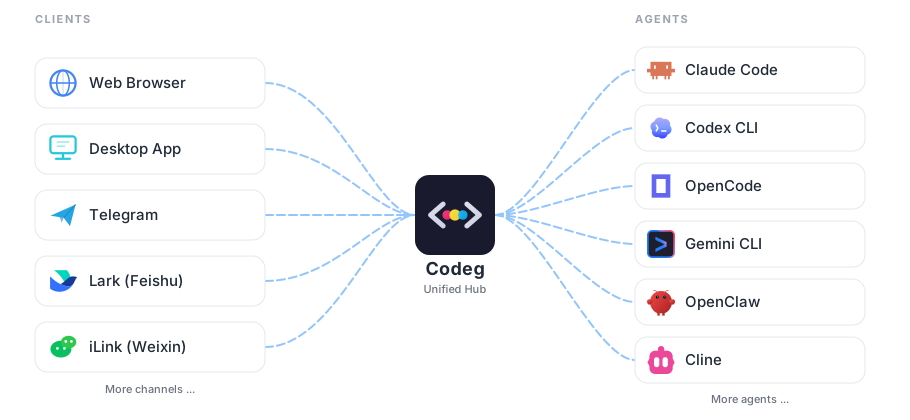
Connect a channel
Everything lives under Settings → Chat Channels, which has four tabs — Channels, Commands, Events, and Other. Start on Channels and click Add Channel: give it a name, pick a Channel Type, and fill in what that type needs.
| Channel | What you provide | How it reaches Codeg |
|---|---|---|
| Telegram | A Bot Token (from @BotFather) and the Chat ID to talk in | Long-polls Telegram's API |
| Lark (Feishu) | A custom app's App ID and App Secret, plus the group's Chat ID | Opens an outbound WebSocket to Lark |
| Nothing to type — you scan a QR code | Through the hosted iLink bot service |
The specifics per type:
- Telegram. Create a bot with @BotFather, paste its Bot Token (
123456:ABC-DEF…), and give the Chat ID of the chat or group the bot should post in (-100123456789for a group). - Lark (Feishu). From a Lark custom app, take its App ID (
cli_xxxxx) and App Secret, and the Chat ID of the target group (oc_xxxxx). - WeChat. There's nothing to paste — leave the iLink base URL at its default (
https://ilinkai.weixin.qq.com) and, after adding, click Connect ▶ to bring up a QR code. Open WeChat, scan it, and the channel authorizes itself. The code refreshes every five minutes if no one scans it.
You can also switch on a Daily Report per channel and set a time (default 18:00) — Codeg will push a once-a-day summary of that day's sessions.
Once a channel is added it shows up under Configured Channels, where each row carries an enable toggle and buttons to Connect ▶ / Disconnect ■, Test its pipe with a ping message, Edit it (disconnect first), or Delete it. A colored dot tracks live status — green connected, amber connecting, red error, grey off. Enabled channels auto-connect whenever Codeg (or the server) starts, so you set this up once.
No open port, no public URL
Every channel connects by reaching out — Telegram long-polls, Lark opens a WebSocket, WeChat rides the iLink service — so none of them need an inbound webhook or a port you expose. A desktop behind NAT works exactly like a public server. (The one outbound-HTTP piece, webhooks, is optional and points the other way.)
Drive Codeg with commands
Anything you send the bot is read one of two ways. If it starts with the command prefix it's a command; otherwise, if you have a session open, it's the next message to that session's agent.
The prefix is / by default and lives in the Commands tab — set it to any 1–3 non-alphanumeric characters if / clashes with something. In a group chat you must @-mention the bot for it to read your message at all.
| Command | What it does |
|---|---|
/folder [n|path] | List your folders, pick one by number, or add one by path — sets your working folder |
/agent [n|name] | List agents, or choose which agent runs your next task |
/task <description> | Create a session in the current folder with the current agent and run the task |
/sessions | List the in-progress sessions in your folder |
/resume [id] | Resume a session by id (or list recent conversations) |
/cancel | Cancel your active session |
/approve [always] | Approve the pending permission request (always also auto-approves future ones in this chat) |
/deny | Reject the pending permission request |
/search <keyword> | Search your conversations by title |
/today | A summary of today's activity |
/status | Connection status of your channels |
/help | The command list |
A typical run is just three messages and then plain talk:
/folder 2
/agent claude_code
/task Fix the flaky test in tests/auth.spec.ts and explain the cause
After /task, drop the slashes — any message without the prefix is forwarded to your agent as its next prompt, so you converse with it normally. (If it's still mid-turn, Codeg replies that it's busy and to try again.)
Everyone gets their own context
The current folder, agent, and session are tracked per chat member, so several people can share one connected bot and each run their own tasks without stepping on each other.
Telegram topic mode
If your Telegram channel points at a forum supergroup — the kind with separate topics — Codeg can give each session its own topic, so one group hosts many conversations side by side instead of interleaving them in a single thread. Each topic is bound to one Codeg session. It's off until you switch it on, and it's Telegram-only — Lark and WeChat are unaffected.
What it needs:
- The chat is a forum-enabled supergroup, and the bot is a member of it.
- To let Codeg create and rename topics, make the bot an administrator with the Manage Topics permission.
- The channel's Chat ID points at that supergroup — updates from any other chat are ignored.
Turn it on: edit the Telegram channel (disconnect first), switch on Topic mode, save, and connect. Existing channels keep their old single-thread behavior until you flip this on.
How sessions map to topics:
- In the General topic,
/task <description>creates a new topic and starts a session bound to it. Plain text in General is ignored — send/taskexplicitly, so the bot never fires on ordinary group chatter. - In a topic you made by hand,
/task <description>starts a session and binds it to that topic;/resume [id]binds an existing session instead. - In a bound topic, plain text is just the next message to that topic's agent — no command needed.
/sessions,/cancel,/approve,/deny,/folder, and/agentkeep their meanings; the session-specific ones resolve to whichever session the current topic is bound to./folderand/agentwith no argument show inline buttons.
When Codeg updates a conversation's title it tries to rename the bound topic to match — best-effort, so if Telegram refuses or the bot lacks permission, the conversation still renames on Codeg's side. Closing or deleting a topic doesn't cancel its session, and past sessions aren't migrated in — topic mode applies to sessions you start after enabling it.
Approve, and follow along
The Events tab controls what Codeg pushes back to your chat. Five events, each a toggle:
| Event | Fires when | Default |
|---|---|---|
| Turn Complete | An agent finishes a turn | On |
| Agent Error | An agent hits an error | On |
| Permission Request | An agent needs approval to act, and is waiting | On |
| Agent Question | An agent asks you something | On |
| User Message | You send a prompt — the prompt text is included | Off |
User Message is off out of the box on purpose: it's the one event that copies your prompt text out to the channel (and to any webhooks), so you opt into that deliberately.
The payoff is the Permission Request loop. When a task you launched from chat wants to run a command or write a file, Codeg posts the request into that same chat and waits — reply /approve (or /approve always) to let it through, or /deny to refuse. That's the whole point of the feature: an agent can pause for a human decision and you can give it from your phone, wherever you are. Questions work the same way, surfaced for you to answer.
Updates about a task you started from a chat stream back to that chat — its replies, tool calls, and the prompts above. Sessions you started in the app show up in your connected channels as notifications too (rate-limited so a chatty run doesn't flood you), which is how you keep half an eye on desktop work from your pocket.
Send events to your own tools
Under the same tab, Webhooks relay the same enabled events to any URL you add as an HTTP POST with a JSON body — for wiring Codeg into a dashboard, a Slack relay, or your own automation. The event toggles above gate webhooks too (though webhooks aren't rate-limited). The payload is small and stable:
{
  "event": "permission_request",
  "level": "warning",
  "title": "Permission Request",
  "body": "An agent is waiting for approval.",
  "fields": [{ "label": "Operation", "value": "Bash: npm test" }],
  "connection_id": "conn-abc",
  "source": "codeg"
}
Unlike the chat bots, a webhook points outward — Codeg calls your URL — so if you run behind a firewall, that URL has to be reachable from the machine Codeg runs on.
Choose the message language
The Other tab has one setting: Message Language — the language Codeg writes its chat messages in (command replies, event notifications, the daily report). It's independent of the app's own interface language, and covers the same ten languages, so you can run Codeg in English but have the bot answer you in 简体中文.
Good to know
- Channels are app-wide, not per-folder. You add them once; you choose the folder per task with
/folder. - Bot tokens are kept in the same secret store as your git credentials — your OS keyring on the desktop, or the server's
tokens.jsonunderCODEG_DATA_DIR. Everything else about a channel (its name, chat id, event settings, daily-report time) lives in Codeg's local database, and message history is logged with a 30-day retention. → Where Codeg stores its data · git accounts - Your bot talks to the messaging service directly. Nothing routes through an Anthropic or Codeg server; Telegram and Lark connect straight from your machine, WeChat through the iLink relay.
- On a server it's identical. The same Settings screen is in the browser build — just make sure the server can reach the internet.
- WeChat has one quirk. Because of an iLink protocol limitation, after every reconnect you have to send the bot a message before event pushes start flowing again; Codeg flags this with a small reminder on the channel.
- Permissions from chat are the real thing.
/approveanswers the exact same prompt you'd see in the app, at your normal permission level — the chat is just another place to say yes.
Next steps
- Automations — the other way to run Codeg hands-off: save a configured composer and run it headlessly, on a schedule or on demand.
- Working with Agents — enable and sign in the agents your chat tasks will run, and set a folder's default agent.
- Configuration — server data directory,
CODEG_DATA_DIR, and where secrets live.