
To-dos
A conversation is something you sit in front of. A task is something you write down and walk away from.
To-dos is a queue of those, which agents work through on their own. Each task gets its own copy of the code — a git worktree beside your project — so several can run at once without touching each other or the tree you're working in. When one finishes it doesn't merge itself: it moves to a review column and waits for you. You read the diff, send it back for changes, or accept it — and only then does it land on your branch. (A folder can be told to land reviewed tasks on its own, but that's off until you ask for it.)
What a task is
A task is a title, a description, and the composer state to run it with — an agent, a mode, whatever options that agent takes. That's it. Codeg supplies everything else: the isolated checkout, the branch, the scheduling, and the review step at the end.
It moves through a fixed pipeline:
to do → queued → setting up → running ⇄ awaiting input → to review → merging → donewith failed and canceled as side paths off it. Two rules hold throughout. Done is written in exactly two places — a merge that git confirms landed, and the Complete action for a task with nothing to merge — and once written it never rolls back. And a task never skips the review stop: every route to done goes through it, including an automatic merge.
That's what separates a task from the two things next to it. A conversation is you and an agent, turn by turn, in your own working tree. An automation is a session that fires on a clock. A task is neither: it's a unit of work with a beginning, an isolated place to happen, and an acceptance gate at the end.
Open To-dos
To-dos sits in the left sidebar, under Automations. It takes over the main area the same way Automations does — a back arrow in the top-right corner returns you to your conversations, with whatever tab you had open still there — and it carries a small count badge when tasks are waiting on you: anything in awaiting input, to review, or failed, so you can tell from any screen that there's something to look at.
Its two controls live in the window's top-right cluster, beside the settings gear: a view toggle and Task settings. They cost nothing in width — a full-page route hides the terminal and aux-panel toggles, which would have nothing to act on, and these take the slots.
Board or list
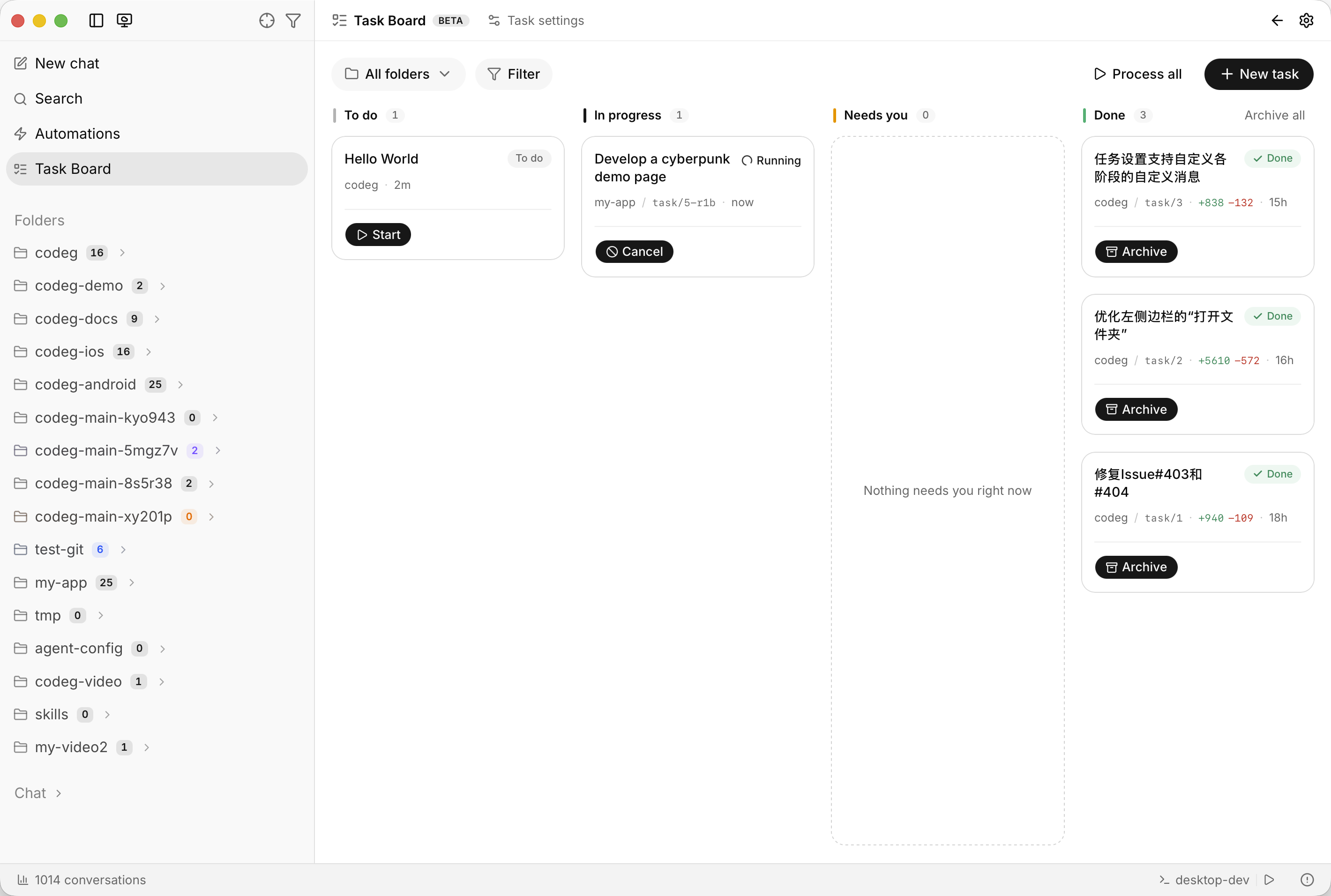
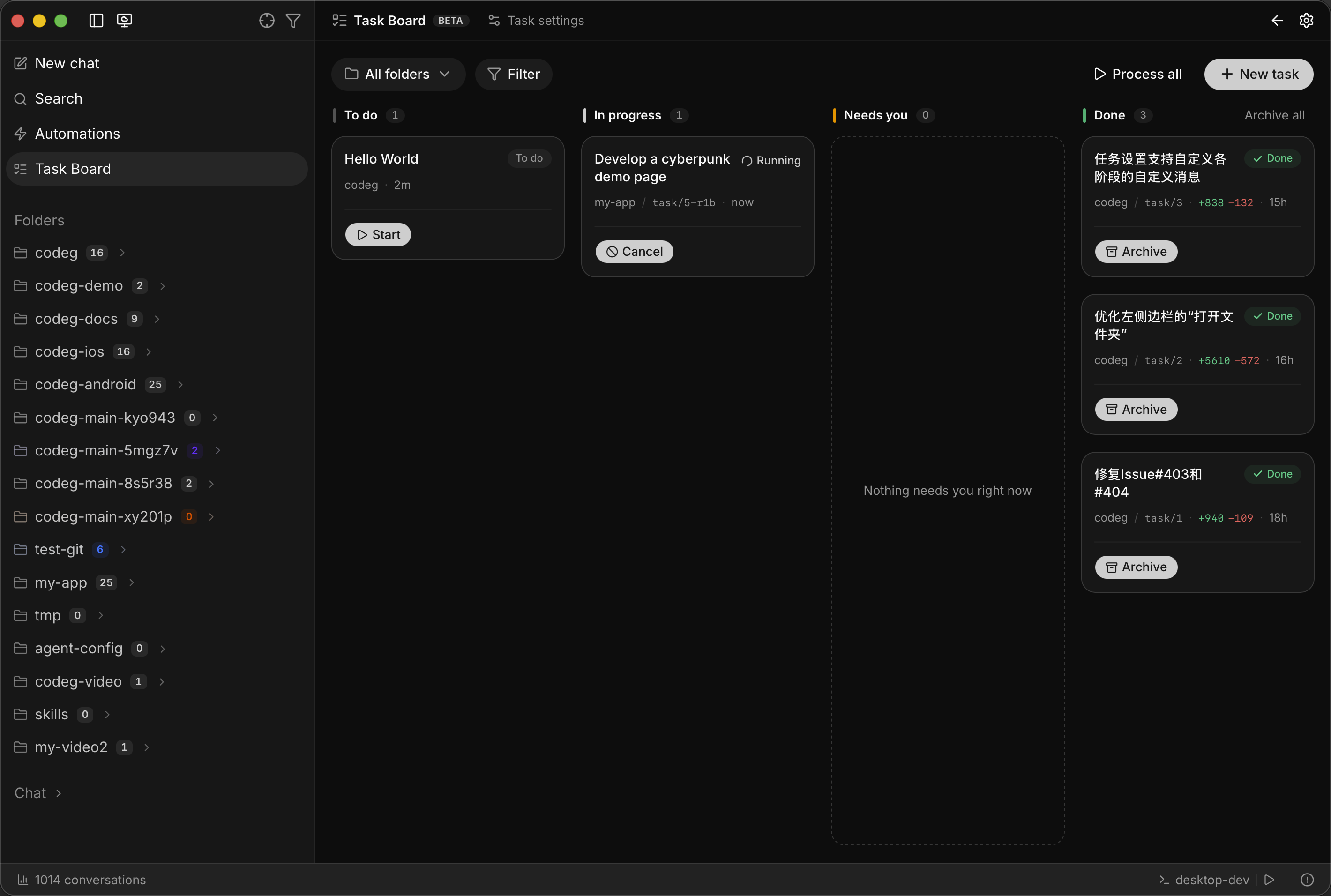
The board is four columns:
| Column | What's in it |
|---|---|
| To do | Written down, not started — plus anything queued behind the concurrency limit, and anything scheduled for later |
| In progress | Being set up, or an agent is working on it right now |
| Needs you | Blocked on a question, finished and waiting for review, mid-merge, or failed |
| Done | Merged, or completed with nothing to merge (and, if you ask for them, canceled ones) |
Every column orders freshest first, so whatever just moved, retried, or finished is at the top of its column rather than buried under older work.
The list is the same tasks as one flat, freshest-first table — Status · Task · Location · Changes · Updated — with a Status filter that speaks the four column names. Its rows show every action they offer as a labelled icon button instead of hiding most of them behind an overflow menu, so the list is the faster surface once you have more tasks than fit in four columns. Your choice of view is remembered.
Cards carry the status, then a meta line reading folder / branch · +/− line count · a relative time. That last one is the most recent milestone the task actually reached — done or canceled, else review or failed, else started, else created. While a task is live the card also shows the latest milestone the agent reported, so the column tells you what's happening without opening anything. Click a card for its detail drawer — since 0.28 it slides in from the right rather than covering the board, so the column you were reading stays visible behind it. The round buttons on the right of a card are its actions.
Beside each title sits the mark of the agent that's on it — resolved exactly the way the run itself resolves it, so a task that never picked an agent shows the one its folder's default will actually launch, not a blank. On a board where three agents are working at once, that's the difference between reading the column and opening every card.
Add a task
New task opens the editor:
- Title — What needs to be done?
- Task description — the full composer, the same one you use for a conversation:
@to reference files,/for commands,$for Codex skills, the + menu for skills and quick messages, and attachments. A bug report can be a screenshot and nothing else. - Target — the project folder it runs in. Only project roots are offered; a task can't be based on a worktree, since it creates one of its own. A task that has already run is pinned to its folder.
- Agent and mode — these start out inherited from task settings and stay that way until you touch them. Override one for this task and a Reset to inherited control appears to give it back.
That's not only the new-task box. Every to-do input is the full composer — editing a task, following up on a reviewed one, leaving a note on a retry — so you can point at a file or paste an image wherever you're typing.
Templates hold a whole task as a blueprint: Save current as template stores the title seed and the captured composer state under a name, and picking one from the list reseeds the editor. Saving under a name you've used before updates that template rather than piling up copies.
Three other doors lead here:
- From a message. Reading a reply and spotting a follow-up? Beside the copy button on any message sits Create task from message — it drops that text into a new task, pre-filled with the project folder, and switches you to To-dos.
- From an automation, or from the agent itself. An automation can file a task instead of starting a session, and an agent in a conversation can queue one too, if you've allowed it. → Automations
- From a GitHub or GitLab item. The Repository panel lists your issues and pull requests and hands one straight to an agent, choosing how it should be handled — fix it, investigate it, plan it, or review it. The task that comes out is an ordinary one on this board. → Repository Panel
Set it running
Nothing starts by itself unless you say so. Three ways to start one:
- Start on the card.
- Drag a to-do onto the In progress column — it reads Release to start when you're over it.
- Schedule it for a time — see below.
Either way the concurrency limit applies: tasks beyond it sit in Queued and start as slots free up. The limit is per folder, and defaults to 2.
Queued means exactly that and nothing more — waiting for a free slot. Once a task has one, it moves to Setting up in the In progress column while its worktree is created and its init command runs, which is where a task installing dependencies for three minutes belongs. Cancel is available throughout, and it genuinely stops the install rather than leaving pnpm install to finish in the background.
Turn on Process automatically in task settings and you don't press anything at all — to-dos claim themselves as capacity appears, and the queue becomes a genuine work queue.
Cards in the To do column also reorder by dragging, and that order is what the auto-processor follows. (Reordering needs a single folder selected — order is stored per folder, so a mixed-folder column has nothing to persist.)
Start it at a time you pick
Schedule on a to-do card takes a date and a time. The task stays where it is until then, and at that moment starts exactly as if you had pressed Start — the folder's concurrency limit still deciding what actually launches, so a scheduled start is a request to begin, not a promise to jump the queue.
The dialog opens empty, so a task that was never planned never looks planned, and offers In 1 hour, In 3 hours and Tomorrow 9:00 beside the calendar. Picking a day fills in a sensible hour — the next full hour if it's today, 09:00 otherwise — rather than leaving you with half a value that can't be saved. A card with a plan says Scheduled to start at …; Clear schedule takes it off.
Three edges worth knowing:
- A time missed while Codeg was closed fires at the next launch rather than being silently skipped.
- Pressing Start yourself takes over from the plan.
- Cancelling a task clears its schedule, so a later requeue can't be resurrected by a time you'd forgotten about.
What a run actually does
The moment a task starts, before any agent is involved:
- A worktree is created — directory
<project>-task-<id>, branchtask/<id>— pinned to the exact commit your project's HEAD was on right then, so a branch switch mid-flight can't drift it. By default it lands beside your project, and you can send them all somewhere else. The worktree is reused across every later run of that task. - The init command runs, if the folder has one (
pnpm install, say). It runs only in a freshly created worktree, never on a reused one, and a non-zero exit aborts the launch rather than letting the agent start half-installed. An install that gets interrupted — you cancelled, or Codeg quit — runs again next time for the same reason. - The agent launches in that worktree with your task description, plus a standing instruction: commit to the task branch as freely as you like, but do not merge into, rebase onto, or push the base branch — the user lands the result after review.
From there it's a real agent session, and it produces a real conversation you can find in the sidebar under the worktree folder.
While it works, the agent has two extra tools that exist only inside a task run:
task_progress— a one-line milestone ("tests passing, starting cleanup") that lands on the card and the timeline in real time.task_complete— the verdict, called once at the end: success, needs_review (it works, but look at this), or blocked (couldn't finish, and why). Success and needs-review send the task to review; blocked marks it failed.
These two aren't tied to the Collaboration toggles
task_progress and task_complete are injected only into task runs, so they don't depend on delegation, live feedback, or anything else in Settings → Collaboration. And they're advisory: if the agent never calls task_complete, the task still settles normally when its turn ends.
When a task needs you
A task lands in Needs you for four different reasons, and the status on the card tells you which:
- Awaiting input — the agent is blocked on a permission request, a multiple-choice question, or a plan approval. Nothing progresses until you answer. A task whose agent delegated part of the work says this too when it's the sub-agent that got stuck, rather than sitting at running while nothing happens.
- To review — it finished. See below.
- Merging — the merge is in flight. This is the one state you can't cancel. A task waiting for the slot reads queued to merge instead — see below.
- Failed — the run errored, was interrupted by a restart, or the agent reported blocked. Retry picks up in the same worktree, told that the previous attempt was interrupted and to carry on; you can add a note for that next run.
View session is how you unblock the first one. It opens a read-only live view of the task's agent session — and while it's read-only for prompting, it does render the permission dialog and the question card, so this is where you answer. The viewer streams live for a running task and shows the stored transcript for a settled one, split into the phases the task went through: Task run, Retry run, Follow-up, and Merge. It opens nested inside the task drawer that launched it, so backing out of the transcript returns you to the task rather than to nothing. Since 0.30.3 a file the transcript mentions opens beside it rather than in the workspace column the board is covering — a file badge, a Markdown link or view diff brings up a read-only viewer next to the messages, with Open in workspace one click away. → the same panel on the canvas
If its worktree went missing
Delete a task's checkout from disk — by hand, or from the branch selector — and the task used to have nowhere left to go: a merge needs the worktree, and completing errored on the missing directory. Now it recovers instead:
- Every card badges it, in any status, as Worktree removed.
- A reviewed card offers Complete instead of Merge, with dialog copy that says why. A work branch still holding unlanded commits is kept, not deleted.
- A retry or a follow-up rebuilds the checkout from the task's recorded branch, on its original base — so committed work is picked back up rather than stranded behind a fresh, empty tree.
Review the result
Open a reviewed task and the detail drawer lays out everything you need to judge it:
- Result — the summary the agent wrote when it called
task_complete, rendered as Markdown, so its headings, lists and code read as intended. A long one folds behind show more. - Changed files — every file against the task's recorded base, with
+/−counts. Click one for its diff, or View full diff for the lot. - The counters measure what this task did. Since 0.28.2 they're anchored to the point an acceptance would deliver from — the pull request's head for a task triggered from one, the recorded base otherwise, moved forward to the live merge base when the branch has pulled base changes in. So a task triggered from a pull request no longer counts the pull request's own changes as its work, and a branch that merged the base in doesn't count the base's. (The list keeps the wider merge-base view, and says so inline when it's showing you the pull request's changes too.) Files the agent created but never staged count as well:
git diffreads from the index, so brand-new files used to read as no work at all — the measure now runs against a throwaway copy of the index, which picks them up while leaving ignored artifacts and your real index alone. - Progress — the task's timeline: created, status changes, the launch config actually used, init-command output, agent milestones and verdict, preflight, merge attempts, and your own actions.
- Details — branch, merge commit once there is one, change totals, scheduled start, and the created / started / finished timestamps. Total tokens sit in the header.
If the folder has a preflight command, it runs in the worktree the moment the task reaches review — your acceptance test, as a red or green light on the card. A failure keeps the tail of its output right there, so you can see what broke without opening a terminal.
Four ways out:
- Merge — accept it. See below.
- Follow up — another pass. See below.
- Complete — mark it done with no merge at all. Offered when the task changed no files — it answered a question, or verified work that was already right — so nothing has to be landed and no empty merge commit is created. You still choose whether to keep its worktree.
- Abandon — drop it without merging, optionally recording why on the timeline. The task goes to canceled, and since 0.30.0 the dialog can take the worktree with it, so a stop that's really an abandon reclaims its disk in one gesture. The checkbox starts unchecked and is deliberately not seeded from the folder's delete-worktree default — that default is about landing finished work, whereas a canceled task can be Requeued, and this cleanup deletes the work branch along with the directory. Leave it unchecked and nothing is stranded either: the drawer offers the removal on its own afterwards.
A task that came from the Repository panel gets a fifth: Open pull request, or Push to the pull request if that's where it came from. Instead of landing the work in your own checkout, it pushes the branch to the forge — and for a task that came from a pull request it replaces Merge, since that work belongs on the pull request's branch rather than in your base. A push back that would carry nothing is refused, and points you at Complete instead — the honest ending for a task whose answer was that nothing needed changing. → Take the result back
Say what kind of follow-up you mean
Follow up asks for an intent before it asks for text, because the same sentence means four different things:
| Intent | What it tells the agent |
|---|---|
| Rework | Change this. The default, and what Return used to do |
| Keep going | Also do this — what's there already stays as it is |
| Ask | Answer the question without touching any file |
| Double-check | Look it over before I accept it |
The distinction earns its keep on Ask: an agent told its work was returned starts editing files, which is the last thing you want when you only asked what a function does. Double-check is the one you can send empty — "look it over" needs no elaboration, and making that one click is most of its value.
Either way the work continues in the same worktree and comes back to review. Codeg resumes the original session where it can, so the agent keeps its context; where the agent can't be resumed, a fresh session picks up in that same worktree with the task and your feedback replayed into it, and the timeline records the fallback.
Merge it
The merge is done by the agent, in its own session — which is what lets it resolve conflicts instead of handing them to you. The Merge task dialog asks three things:
- Commit message — Let the agent write the commit message is ticked by default, and the agent composes a Conventional Commits line from what actually changed. Untick it to write your own; the box is seeded with the task's title.
- Extra instructions (optional) — the landing is performed by an agent, so you can direct it: "prefer this branch's side on any conflict", "update the changelog on the way". Left empty it changes nothing. What you write is parked with the merge, so one that waited its turn in the queue lands under the same directions you queued it with rather than losing them. It's read before the closing rules, which is deliberate — the last word still belongs to the rules that forbid pushing or self-deletion.
- Delete worktree after merge — seeded from the folder's task settings.
The strategy isn't asked here — it's read from the folder's task settings when the merge starts. Combine into one commit (squash; the default) lands the whole task as a single history entry, while Keep full history keeps every commit the task made plus a merge entry. If you want the other one, change it there before you merge.
Then the agent commits anything uncommitted on the task branch, merges the base branch into the worktree and resolves every conflict there, and only then lands the result on the base branch in your project folder.
Codeg doesn't take the agent's word for any of it. When the turn ends it checks git truth — did the base branch's HEAD actually move, and does it actually contain the work? If not, the task goes back to review with the reason, and any half-finished merge is cleaned out of your project folder.
What the merge needs from your project folder
The merge lands in the folder you're working in, so it checks first: the folder must be on the base branch, with nothing staged. If either fails you get a plain message saying which, and nothing is touched.
A second merge waits in line
Only one merge per project runs at a time — they all land on the same base branch, so they can't overlap. Accepting a second reviewed task while another is mid-merge used to be refused outright; now it takes a place in the queue and starts on its own the moment the slot frees.
- The card and the row read queued to merge, with where it sits in line, and offer a way out of the queue.
- Submitting again updates the queued merge — a different commit message, a different worktree choice — rather than adding a second entry, and it keeps its place.
- Withdrawing actually withdraws it. A merge you took out of the queue can't be landed by a sweep still working from an older view of the board.
- Your queue drains ahead of automatic merges, so a merge you asked for by hand is never stuck behind the folder's own housekeeping.
Let a folder land them for you
Merge automatically, in the folder's Merge settings, does exactly what pressing Merge would — same agent-authored commit message, same per-stage prompts, same worktree cleanup default. A folder with it on drains its review column on its own, oldest first, one merge at a time.
What it deliberately won't do is push through a problem:
- A red or still-pending preflight waits for you. Only a green light qualifies; without a preflight command there's no gate at all.
- A task that changed nothing is left alone — that's Complete's territory, and it's your call.
- A missing worktree is left alone, for the same reason.
- A failure banners the card and stops. It is never retried unattended — a merge that failed once would only fail in a loop, so the row waits for a human and the sweep moves on.
Task settings
The Task settings dialog (the sliders icon in the top-right cluster) has a Scope switch: All folders (global defaults), or one folder in particular. A folder either follows the global defaults — changes there apply here automatically — or has Custom settings of its own, and switching to Custom starts from whatever applies today.
Below that, four tabs — one decision each:
| Tab | Setting | What it does |
|---|---|---|
| General | Default agent | The agent tasks in this folder run with, unless a task overrides it |
| Process automatically | To-dos start on their own, up to the concurrency limit | |
| Max concurrent tasks | How many run at once, per folder. Default 2; 0 = unlimited | |
| Merge | Default merge strategy | Squash or full history, offered as two side-by-side choices. Read when a merge starts — the merge dialog doesn't ask |
| Merge automatically | Land reviewed tasks without a click — see above | |
| Delete the worktree after merging | Pre-ticks that box in the merge dialog; you can still change it there | |
| Worktree | Worktree location | Where new task worktrees are created — see below |
| Worktree init command | Runs inside a freshly created worktree before the agent starts | |
| Preflight command | Runs in the worktree when a task reaches review — the acceptance light | |
| Prompts | Per-stage instructions | See below |
Merge and Worktree were one Workflow tab until 0.26 — they answer different questions (how a finished task lands, versus where its work happens) and they're separate now. Nothing moved in what's stored, and an edit survives switching tabs, so you can fill in three of them and save once.
Keep the worktrees somewhere else
By default a task's worktree is created right beside the project folder, as a sibling directory. That's the least surprising place for it, but it does mean a folder full of projects grows a myapp-task-7 next to myapp.
Worktree location on the Worktree tab takes a directory to put them in instead — one <repo>-task-<id> per task under it, picked with the OS dialog or the in-app browser. ~ is your home directory, and a relative path resolves against the project folder. Set it globally to collect every project's task worktrees in one place — ~/codeg-worktrees — or per folder for the one repo where the sibling layout is in the way.
Leave it empty and nothing changes: worktrees keep landing beside the project. Changing it is forward-looking, too — worktrees already on disk stay exactly where they are, since a task reuses the checkout it was given.
Compact before a resumed round
A task that comes back for a second, third and fourth round is refilling the same context window each time, and the round that finally runs out of room is the one you cared about. Since 0.30.0 a task can compact itself first.
Two settings: an auto-compact threshold as a percentage — how full the context has to be before it's worth doing — with 0 meaning off, and an optional compact command if your agent's is not the obvious one.
When a retry, follow-up or merge round resumes a session that's at or above the threshold, the engine sends the compact command, waits for that turn to finish, and only then sends the round's own message. A fresh session is never compacted — there is nothing there to compact. The occupancy it read going in is recorded on the task's timeline, and the figure afterwards joins it whenever the live session reports one, so you can see whether the threshold you picked is doing anything.
The command is resolved per agent, most specific first: your setting, then a compaction verb the session itself advertises, then a built-in default. Setting it is only necessary for an agent whose compaction isn't discoverable.
Add your own instructions per stage
Every launch already carries a built-in prompt — the task itself, the worktree rules, and for a merge the exact git steps. The Prompts tab is where you add to it: pick a stage, write what your project needs, and your text is appended to Codeg's own wording under an Additional instructions heading. It refines the built-ins; it never replaces them, so you don't need to restate any of it.
Five stages, each with its own example placeholder, and a dot on the ones that already carry text:
| Stage | Sent when |
|---|---|
| All stages | Every prompt the agent receives, the merge run included |
| Task run | A task runs for the first time |
| Retry run | An interrupted or failed task is picked up again |
| Follow-up | You send a reviewed task back — rework, extra work, or a self-check |
| Merge | The agent lands the task onto the base branch |
The split earns its keep because what belongs in one stage is nothing like what belongs in another. All stages is the place for house rules — "follow the conventions in AGENTS.md; keep the final summary to two sentences." Follow-up is where you'd write "address every point in the feedback; don't refactor anything unrelated." Merge is where "write the landing commit message in English; call out any conflict you resolved by hand" actually applies, and nowhere else.
Keep the board tidy
- Filter by folder with the dropdown, by status in list view, and by visibility with the Filter menu: Show canceled (on by default) and Show archived (off). The filter button badges itself when you've moved away from those defaults.
- The folder picker searches. It's the same list the new-conversation composer uses — a search box, and one row per folder reading alias [ name ] over its full path. Typing matches the alias, the real directory name and the path, so two folders you've aliased alike are still tellable apart, and a folder you know only by its on-disk name is still findable. The task editor's target folder and the settings scope picker use it too.
- Archive takes a task off the board without deleting it, once it's reached an end — done, failed, or canceled; Archive all clears everything the Done column is currently showing. An archived card offers exactly one action — Unarchive.
- Requeue puts a canceled task back in To do, reusing its worktree — with an optional note about what should change this time.
- Delete removes a task entirely, cancelling an active run first, with an opt-in checkbox to also delete its worktree.
- Delete worktree — a glyph-only button in the detail drawer's bottom bar, immediately left of delete. Merging, completing and — since 0.28.2 — delivering to a pull request all offer to take the worktree along, and all let you say no, so a finished task can end up holding a checkout nobody will open again. This reclaims that disk without touching the task: the directory and its work branch go, the card stays on the board, and its conversation is re-parented to the project folder. It's confirmed first, and it only appears when there's something to remove and no failed cleanup is already showing its own retry.
- If a worktree can't be removed — something has it open, a lock file is held — the card says Cleanup failed or Worktree kept and offers Retry cleanup. Nothing is silently left behind.
- A worktree holding uncommitted changes is not removed. Since 0.30.0 the removal is refused outright rather than forced, because forcing it takes that work with it and there is nowhere to get it back from. Commit it, or throw it away deliberately, and then remove the worktree.
Good to know
- Tasks are project-scoped. They run from a project root, never a worktree, and a task's board is the folder's board.
- Every task is a full agent session. Its own token cost, its own transcript, its own entry in your history. Running four at once costs four sessions' worth. → Token Usage
- It works on a server too. The task engine runs in the desktop app and in
codeg-serveralike — one engine per data directory, so a desktop app and a server sharing one directory won't both drive the board. - A restart doesn't lose work. Tasks running when Codeg quits come back marked interrupted, and Retry continues in the same worktree — which still has everything the agent had done.
- A retry starts from a clean slate. It no longer carries the result the previous run reported about itself.
- Deleting a worktree doesn't delete its conversations. They're re-parented to the project folder, and Codeg remembers where they originally ran so their history still resolves.
- The base is pinned at creation. A task diffs against the commit its worktree branched from, not against wherever your branch has drifted to since — which is why the merge step brings the base in first.
- A task from a repository item never merges itself. Its prompt carries text written by whoever opened the issue, so it's barred from the folder's unattended sweep as a rule, not a setting you could switch off. An issue-sourced task still merges on your click; one that came from a pull request can't be merged locally at all, and offers Push to the pull request instead. → Repository Panel
Next steps
- Repository Panel — turn a GitHub or GitLab issue or pull request into one of these tasks, and send the result back.
- Git & Worktrees — the worktree machinery a task is built on, and how to manage the ones it leaves.
- Automations — fire on a schedule and file a to-do instead of a session.
- Working with Agents — the agents, modes, and options a task replays.
- Multi-Agent Collaboration — the other way to run work in parallel: one agent delegating inside a single conversation.